
Image credit — gemini
The shortcut of control f.
Have you ever known a piece of information is somewhere on your iPhone but spent five frustrating minutes trying to find it?
Yes, it’s really very tedious. I understand how in iPhone
A sentence inside a PDF.
A tracking number buried in Gmail.
An address sent months ago in WhatsApp.
A note from a meeting.
A recipe in Safari.
A timestamp in YouTube comments.
A figure inside Google Sheets.
A conversation in ChatGPT.
You know it’s there.
Yet finding it feels like looking for a needle in a digital haystack.
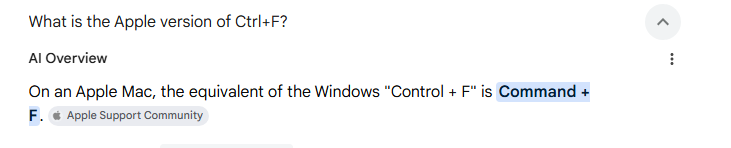
You may probably be knowing that Windows users solve this instantly with one shortcut:
Ctrl + F
Type a word.
Jump directly to the result.
Done.
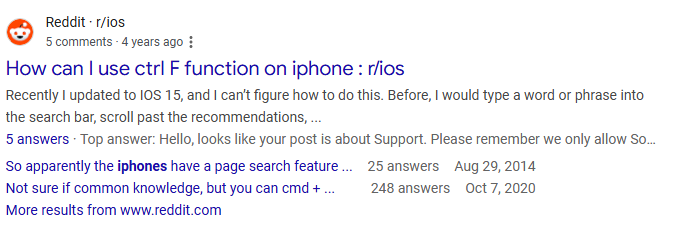
But on iPhone, there is no obvious Ctrl + F key.
As a result, millions of iPhone users waste hours manually scrolling through content that could be found in seconds.
The good news?
The iPhone actually has multiple versions of Ctrl + F.
Most people only know one.
Apple power users know many.
And some of the most effective search techniques aren’t even officially called “Find.”
This guide will show you every practical way to perform Ctrl + F on iPhone across apps, websites, PDFs, messages, documents, notes, and more.
By the end, you’ll stop scrolling and start finding.
What Is Control F on iPhone?
Ctrl + F is simply:
Search within the content you’re currently viewing.
Instead of searching your whole device, it searches:
- The current webpage
- The current PDF
- The current document
- The current conversation
- The current spreadsheet
Think of it as a laser.
Regular search is a flashlight.
Ctrl + F points directly at the exact information you need.
Why Most People Think iPhone Doesn’t Have Ctrl F
Apple hides search differently than Windows.
On a PC:
Ctrl + F is visible.
On iPhone:
Search often lives behind:
- Share buttons
- Menus
- Search bars
- Pull-down gestures
The functionality exists.
The location changes.
That’s where confusion begins.
Control F in Safari (Websites)

This is the most common use case.
Suppose you’re reading:
- A long article
- Product review
- Research report
- Travel guide
Instead of endless scrolling, try following steps:
Method
- Open webpage.
- Tap Share button.
- Scroll options.
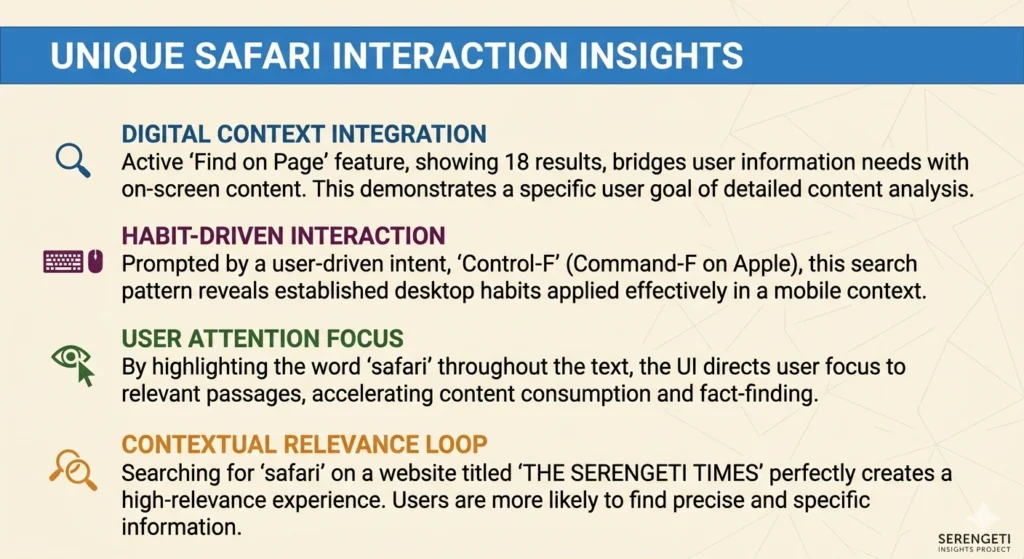
- Tap “Find on Page.”
- Type keyword.
Safari immediately highlights every match.
Example:
Searching:
“refund”
inside a 5,000-word article.
Instead of reading everything, you jump directly to relevant sections.
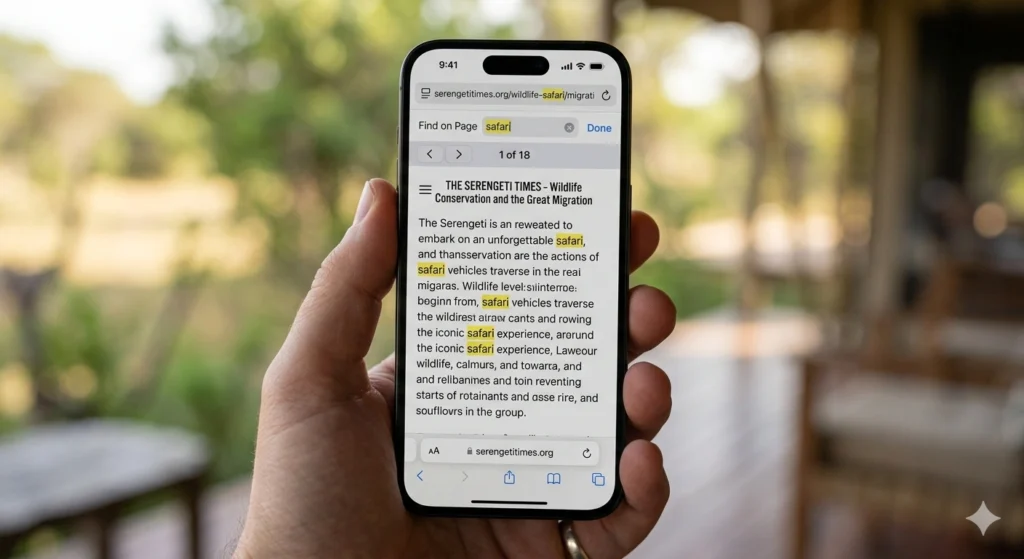
Instead of using Find on Page:
Type the word into Safari’s address bar.
Scroll down.
You’ll often see:
Find “keyword” On This Page
This shortcut is frequently faster.
Many Apple power users prefer it.
You can see the whole process that is taking place in the above image.
Control F in PDFs on iPhone
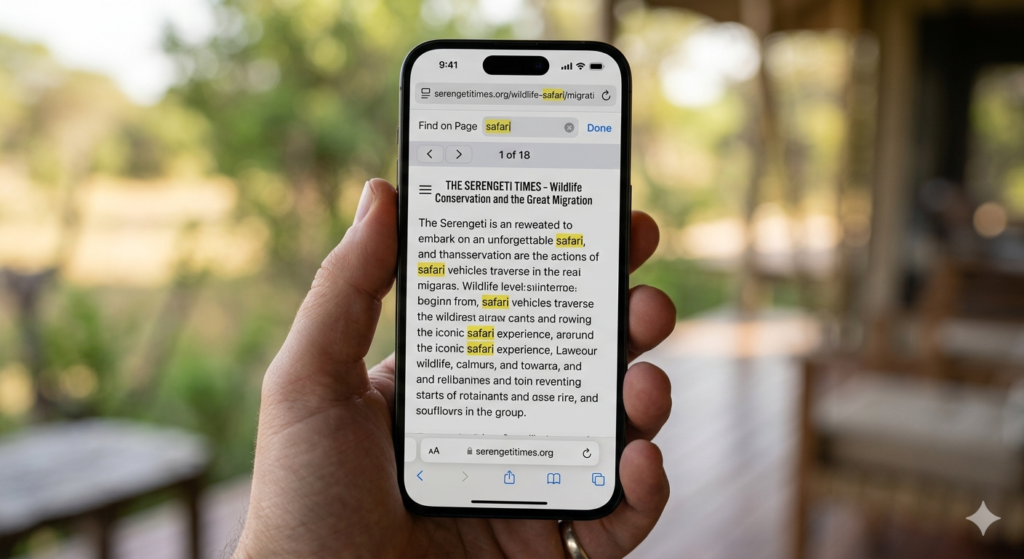
PDF searching is one of the biggest productivity wins.
Imagine:
- Contracts
- Manuals
- Reports
- Ebooks
- Research papers
Searching manually is painful.
Method
Open PDF.
Tap search icon.
Type:
- Name
- Number
- Keyword
Instant results.
Example:
Need:
“Warranty”
inside a 300-page manual.
Search finds it instantly.
I will even urge you a pro tip.
Search:
Partial phrases.
Instead of:
“Refund policy”
Search:
“refund”
You’ll often find more useful matches.
Control F in Gmail
Many people think Gmail search only finds emails.
That is Not true.
It can find specific content buried inside emails.
Method
Open Gmail.
Tap search.
Enter:
- Tracking number
- Order ID
- Company name
- Phrase
Example:
Search:
“UPS”
Instead of manually checking hundreds of emails.
I will urge you also to check the gmail operators.
The ones which are never and rarely used.
Most users never use these.
Search:
from
Finds Amazon emails only.
Search:
newer_than:30d
Finds recent messages.
Search:
has
Finds files.
This feels like Ctrl + F on smooth ride.
Control F in WhatsApp

WhatsApp may contain years of information.
Addresses.
Passwords.
Links.
Receipts.
Voice note references.
Most users scroll.
Smart users search.
And that’s the difference I want to show to you.
Method
Open chat.
Tap contact name.
Select Search.
Enter keyword.
Done.
I will also suggest a power pack for whatsapp.
Search:
- Bank name
- Product name
- City name
- Tracking number
Instead of:
“Where did someone send me that thing?”
You’ll find it instantly.
Control F in Apple Notes
Apple Notes is secretly one of the most powerful search systems on iPhone.
Yes, you will not believe that but it is true.
Method
Open Notes.
Pull downward.
Search appears.
Enter keyword.
Results appear across:
- Notes
- Attachments
- Scanned documents
- Handwritten notes
But the story do not end here.
Many people never discover this.
Apple Notes can recognize text inside images.
Example:
Take photo of:
- Whiteboard
- Receipt
- Business card
Later search words inside the image.
Apple often finds them.
This feels like magic.
Control F in Messages (iMessage)
You always Need these stuff below for daily usage:
- Address
- Flight number
- Restaurant recommendation
Method
Open Messages.
Pull down.
Search keyword.
Results appear instantly.
No endless scrolling.
Control F in YouTube
YouTube lacks a traditional Ctrl + F.
But there are alternatives.
Search Inside Channel
Use channel search feature.
Search Video Transcript
Many videos now include transcripts.
Open transcript.
Search words manually.
This is incredibly useful for:
- Tutorials
- Interviews
- Podcasts
Hidden YouTube Hack
Instead of searching YouTube itself:
Use Google.
Example:
site.com iPhone battery settings
Often faster than YouTube search.
Control F in Google Sheets
Google Sheets supports search wonderfully.
Method
Open sheet.
Tap menu.
Choose Find and Replace.
Type keyword.
Results appear instantly.
It is really perfect for:
- Budgets
- Customer lists
- Inventory
Control F in ChatGPT
Many users don’t realize ChatGPT conversations become large knowledge libraries.
Method
Use conversation search if available.
Or search within browser.
Example:
Looking for:
“SEO strategy”
inside months of conversations.
Search saves enormous time.
A USEFUL FLOWCHART:
[ Start: You want to find text on a webpage ]
│
▼
┌───────────────────────────┐
│ Tap the “Share” button │ (The square icon with an up arrow
│ at the bottom center │ at the bottom of the screen)
└─────────────┬─────────────┘
│
▼
┌───────────────────────────┐
│ Scroll down the menu │
└─────────────┬─────────────┘
│
▼
┌───────────────────────────┐
│ Tap “Find on Page” │
└─────────────┬─────────────┘
│
▼
┌───────────────────────────┐
│ Type your search keyword │
│ into the search bar │
└─────────────┬─────────────┘
│
▼
┌───────────────────────────────────────────┐
│ Safari highlights the matches on the page │
└─────────────────────┬─────────────────────┘
│
▼
┌───────────────────────────────────────────┐
│ Use the ▲ and ▼ arrows next to the bar │
│ to cycle through the results │
└─────────────────────┬─────────────────────┘
│
▼
[ End: Found your text! ]
Out-of-the-Box Search Methods Apple Experts Use
Now let’s cover methods most people have never heard of.
Never seen of.
And most probably never thought of.
Method #1: Spotlight Search Everything
Swipe down on Home Screen.
Search:
- Contacts
- Messages
- Notes
- Apps
- Files
- Emails
Many times you don’t need Ctrl + F at all.
Spotlight finds it globally.
Method #2: Search Inside Photos
This surprises people.
I want you to search Search Photos app:
- mountain
- Car
- Beach
- Pizza
Apple AI recognizes images.
Even text.
You can search:
“Invoice”
and often find photographed invoices.
Method #3: Live Text Search
Point camera at text.
Tap text.
Search instantly.
Perfect for:
- Receipts
- Signs
- Menus
- Documents
Method #4: Files App Search
Many users ignore Files.
Huge mistake.
Files search can locate:
- PDFs
- Word docs
- Presentations
- Downloads
in seconds.
Common Problems and Fixes
Search Doesn’t Find Word
The Problem is :
Different spelling.
Fix:
Search shorter keywords.
PDF Search Missing Results
The Problem is:
Scanned image PDF.
Fix:
Use OCR-enabled PDF reader.
WhatsApp Search Slow
The Problem is :
Huge history.
Fix:
Search unique words.
Gmail Search Too Broad
The Problem is:
Too many matches.
Fix:
Use search operators.
Comparison of Search Methods
| App | Search Quality |
| Notes | Excellent |
| Gmail | Excellent |
| Very Good | |
| Safari | Very Good |
| Files | Excellent |
| Photos | Surprisingly Powerful |
| YouTube | Limited |
| ChatGPT | Depends on interface |
Future of Search on iPhone
Search is changing rapidly.
Apple Intelligence is making search more contextual.
Future systems will likely understand:
Instead of:
“Find refund”
You’ll say:
“Show me the refund policy John sent last month.”
The iPhone will increasingly behave like a personal assistant rather than a search tool.
Frequently Asked Questions
Is there a Ctrl F button on iPhone?
Not a dedicated button, but the functionality exists in most apps.
Can I search PDFs?
Yes.
Most PDF readers support keyword searching.
Can I search WhatsApp messages?
Yes.
Use the built-in chat search.
Can I search inside Notes?
Yes.
Including text inside many images.
What is the fastest search tool on iPhone?
Spotlight Search is usually the fastest starting point.
The One Habit That Saves the Most Time
Most people search where they think information exists.
Experts search where information is easiest to find.
Before opening apps and scrolling:
Ask:
“Can Spotlight find this?”
Half the time, the answer is yes.
That single habit can save hours every month.
The goal isn’t learning another iPhone feature.
The goal is eliminating friction.
Every second spent scrolling is a second not spent doing something useful.
Once you master search on iPhone, you stop hunting for information and start retrieving it instantly.
And that’s exactly what Ctrl + F was designed to do.
REFERENCES:
| Apple User Guide for iPhone Apple Support Gmail Search Operators Guide Google Sheets Help Center WhatsApp Help Center YouTube Help Center OpenAI ChatGPT Help Center |
OTHER READS:
A youtube video:
A Pinterest pin:

Linkedin -- www.linkedin.com/in/shishir-bhargava-68a8b4257
- What Would The Batman 2 Story Look Like If Steven Soderbergh Directed It? - October 16, 2026
- How to Organize Digital Receipts and Warranties | A Practical System That Works - October 11, 2026
- How to Live Without AI | 30-Day Experiment Taught Me to Think Again - October 8, 2026
⚠️ Most People Discover Trends When It's Too Late
Join the Trends Goldmine Insider List and get emerging AI tools, future products, viral keywords, and hidden opportunities before they hit the mainstream.
While everyone else is chasing yesterday's trends, you'll be spotting tomorrow's opportunities first.
🚀 Free Weekly Trend Alerts • No Spam • Unsubscribe Anytime
SIGN UP NOW & RECEIVE A SHORT REPORT ON HOW TO MAKE FORTUNE WITH TRENDS.Trusted by readers who want to discover opportunities before the crowd.